Budget Bot#
Information#
A simple and Easy to use Budget bot that integrates Google Sheet to telegram bot.
Bot functions includes:
- Daily summary text
- Check Google Calendar
- Summary of Finances
- Add Transaction to google sheets
- See last 3 transactions
- To-Do list
- Get latest news (Singapore Straits Time and mothership)
- Check bus arrival timing with details of bus
- Get Causeway Link LTA Traffic Camera
- Get rain update
- Get weather Forecast
Credits:
Setup#
1. Prerequisite#
1.1. Copied both Control Panel and Budget sheet#
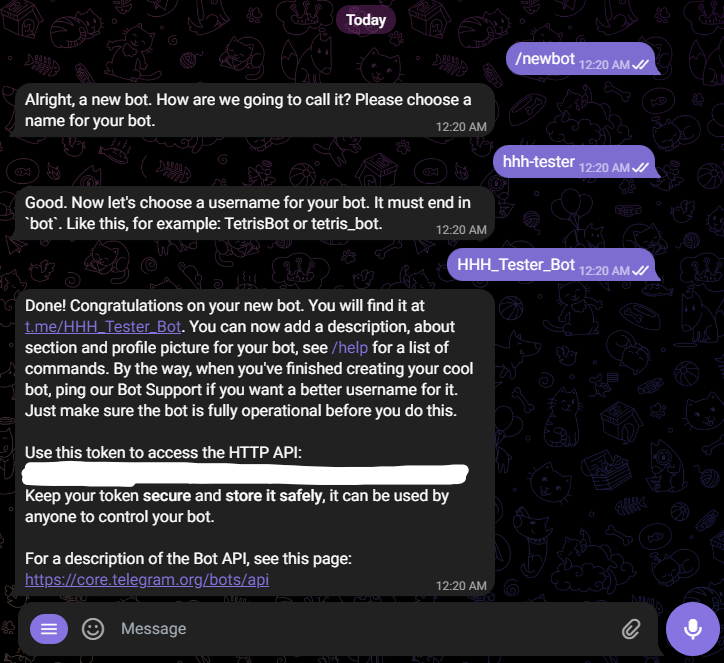
1.2. Create the Bot using Telegram's Bot father @BotFather .#
1.3. Get LTA API Access Key#
-
This is for Bus and LTA Camera Command
-
You can request for the key here: LTA API Request
-
Usage put Student Project then write anything for description
-
Fill in the rest and agree to terms of use then submit
-
Wait for a few minutes and you shall recieve the email
-
You may recieve 2 email, one from DataMall and one from extol.
-
The DataMall API Account key is what you need
2. Configure the script#
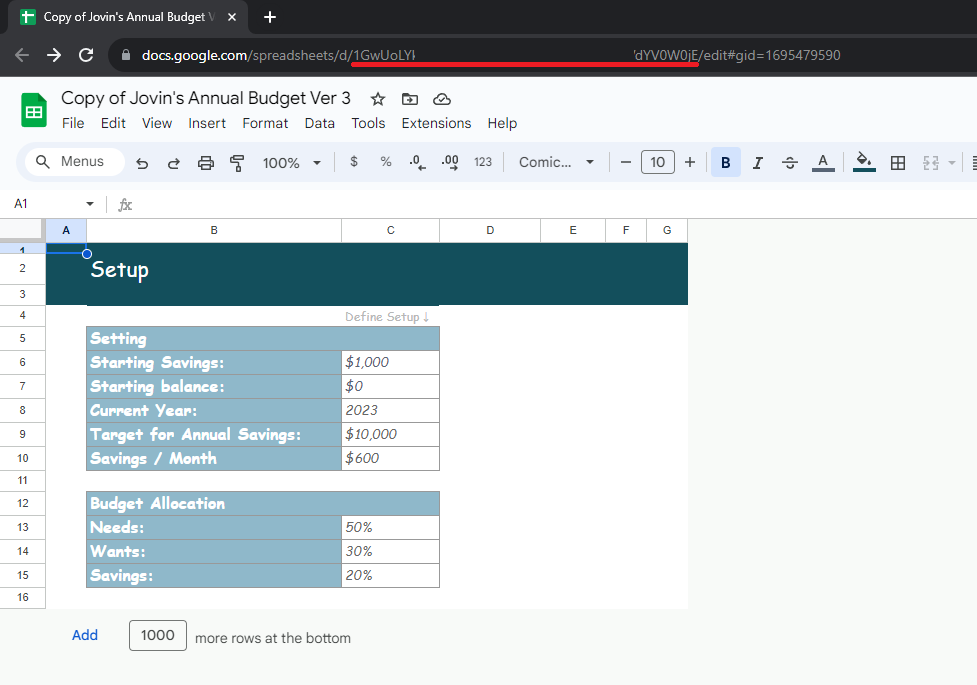
2.1. Get the Jovin's Annual Budget Sheet ID#
-
The URL consist of the Sheet ID
-
To get the sheet id is the one after d/ to the one before /edit......
-
For example the link is:
-
The ID will be :
Up to now you should have:#
-
Bot Token from BotFather
-
LTA API Key
-
The Budget Sheet ID
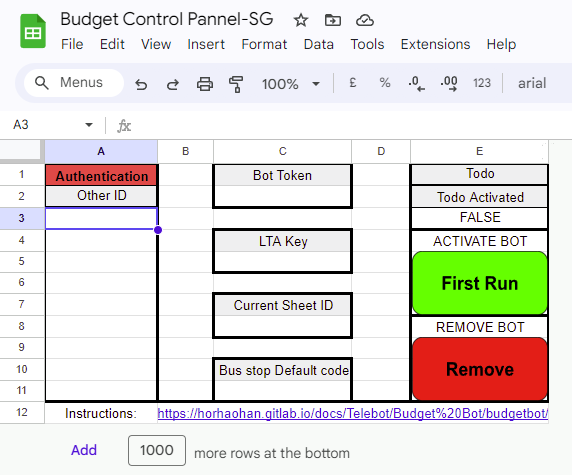
2.2. Fill the Setup Sheet:#
-
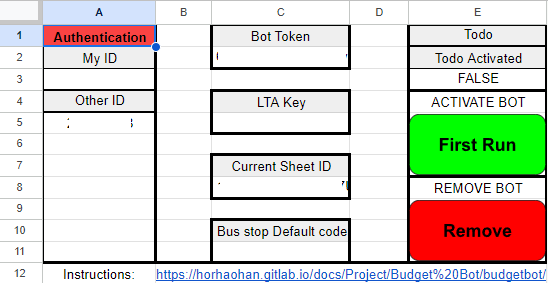
Bot Token
-
LTA Key
-
Sheet ID
-
Bus stop code Bus stop code can set the one you frequently use. For example mine is 77281
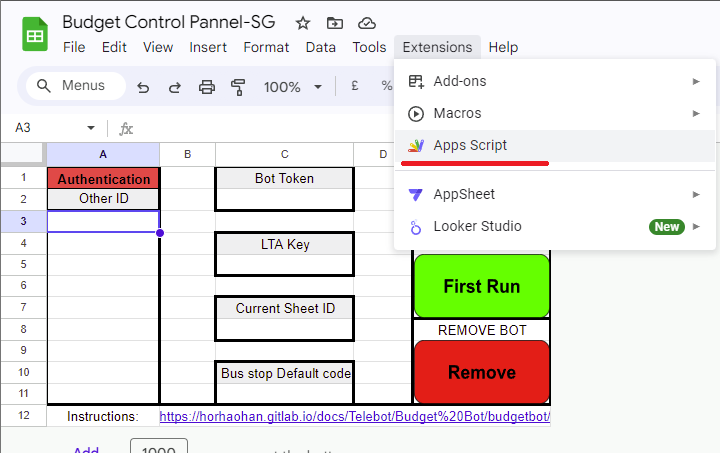
2.3. Open the Script for the bot#
2.4. New Deployemnt#
- Top Right Blue Deploy button
- New Deployment"
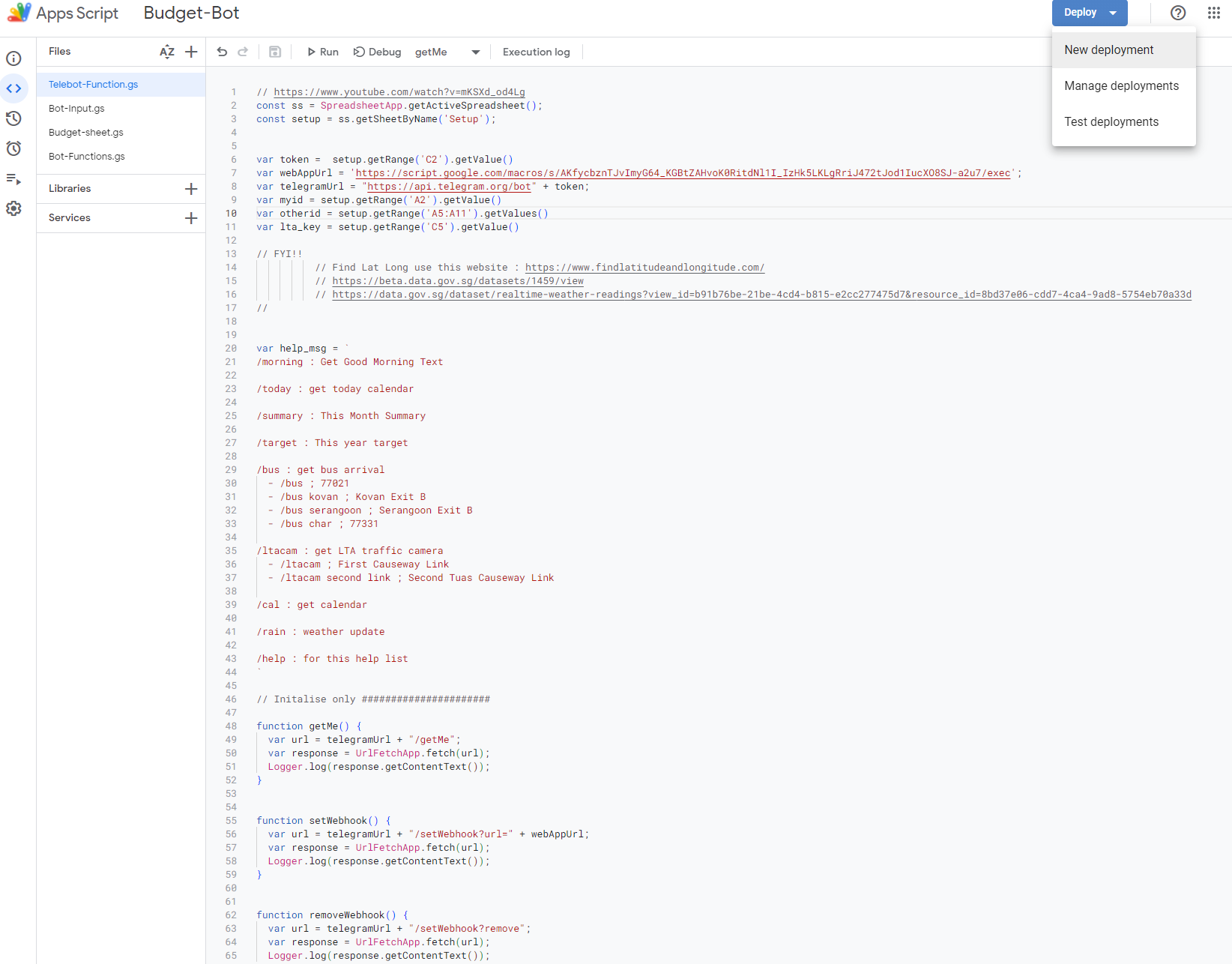
2.5. New Web app#
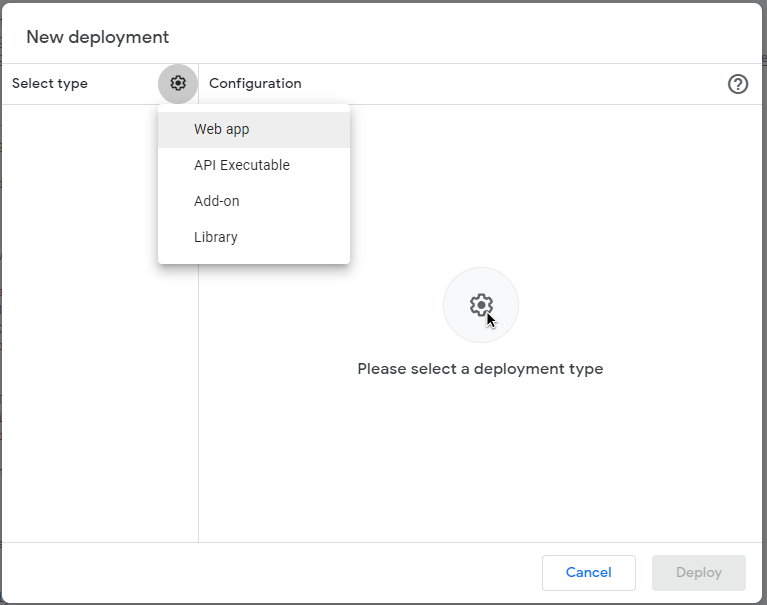
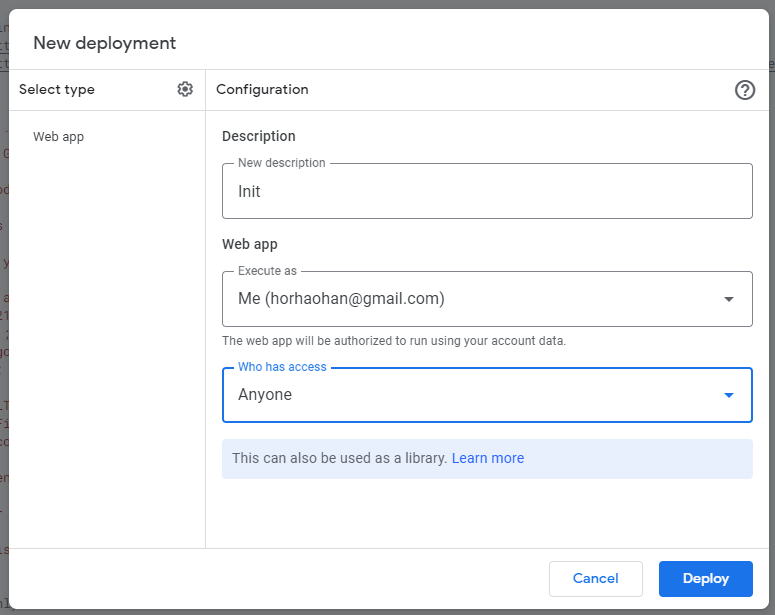
2.6. Deployment config#
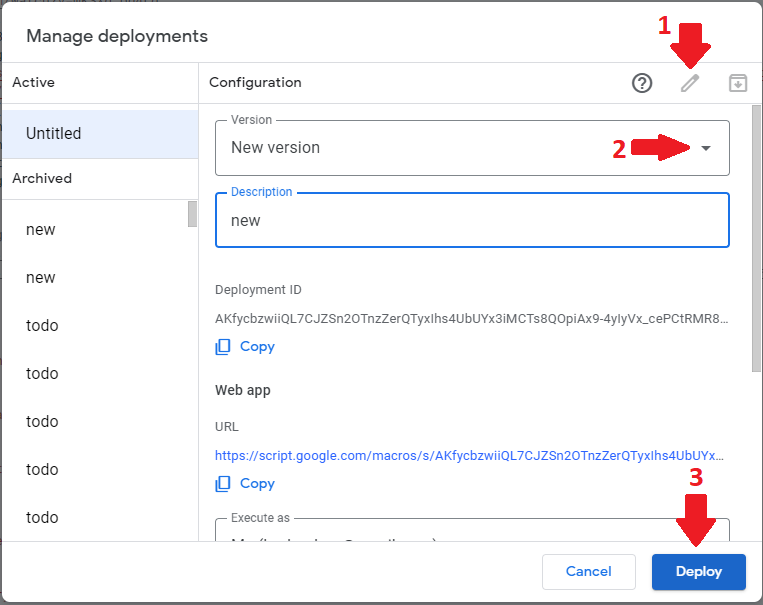
- New Description can be anything
- Just copy the rest and press Deploy
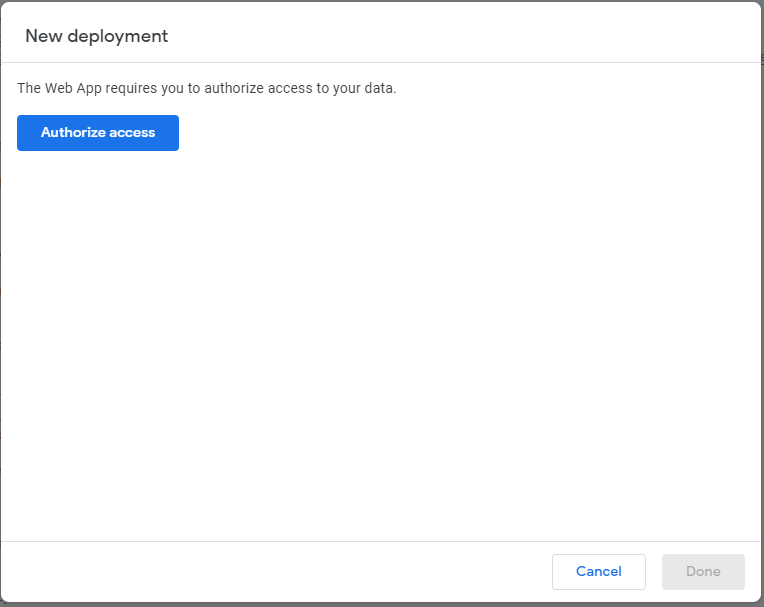
2.7. Authorize Access#
2.8. Go to Budget-Bot (Unsafe)#
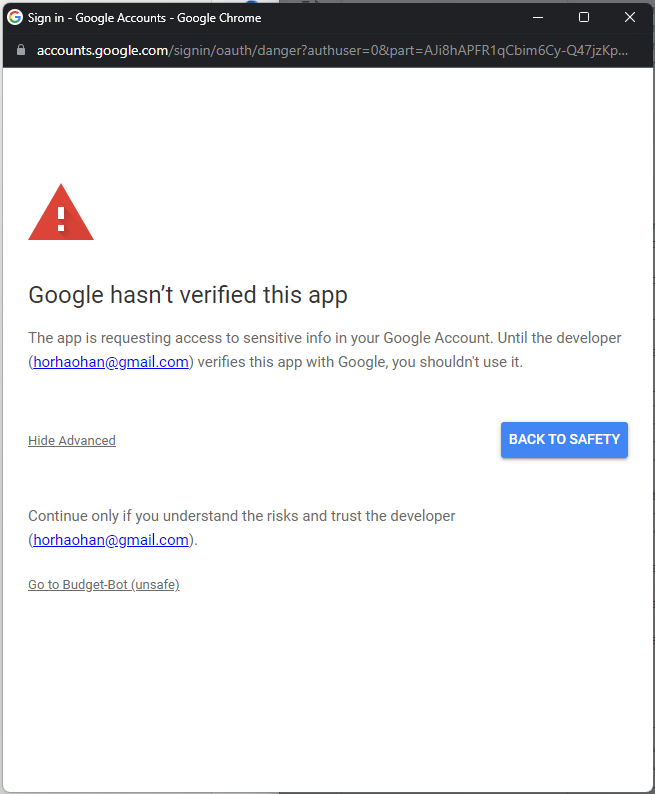
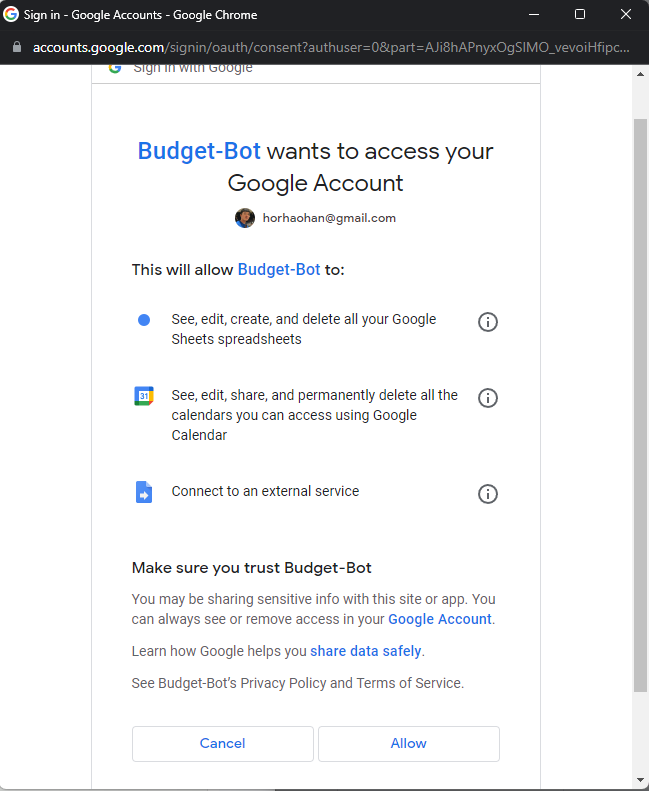
2.9. Allow#
2.10. Copy the Web app URL#
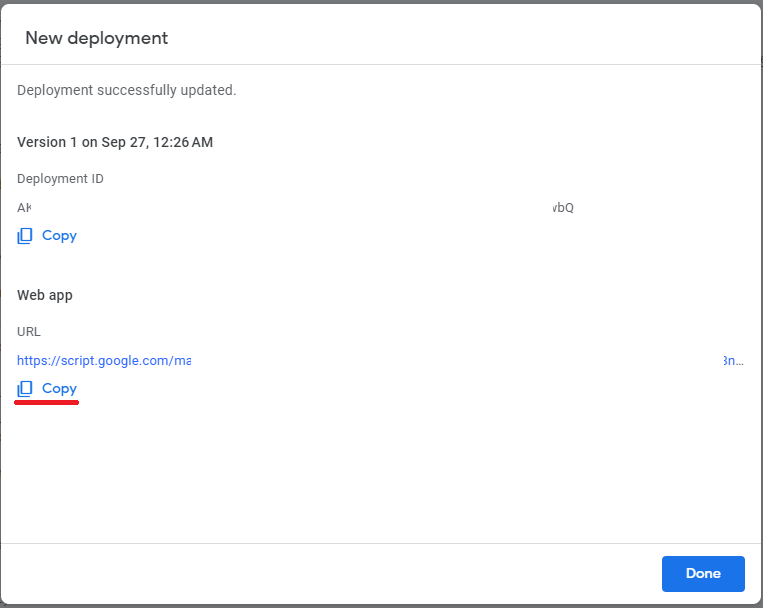
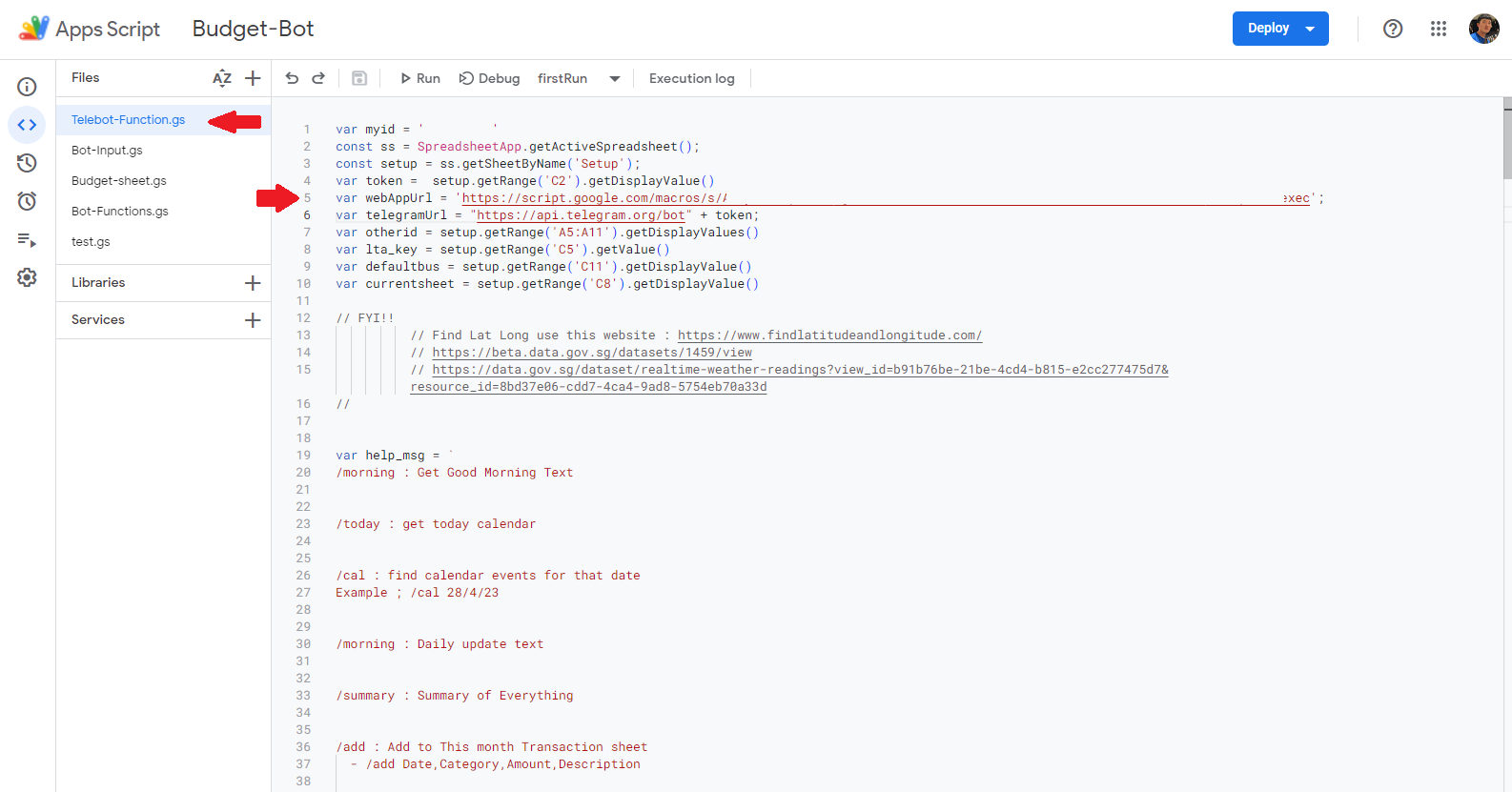
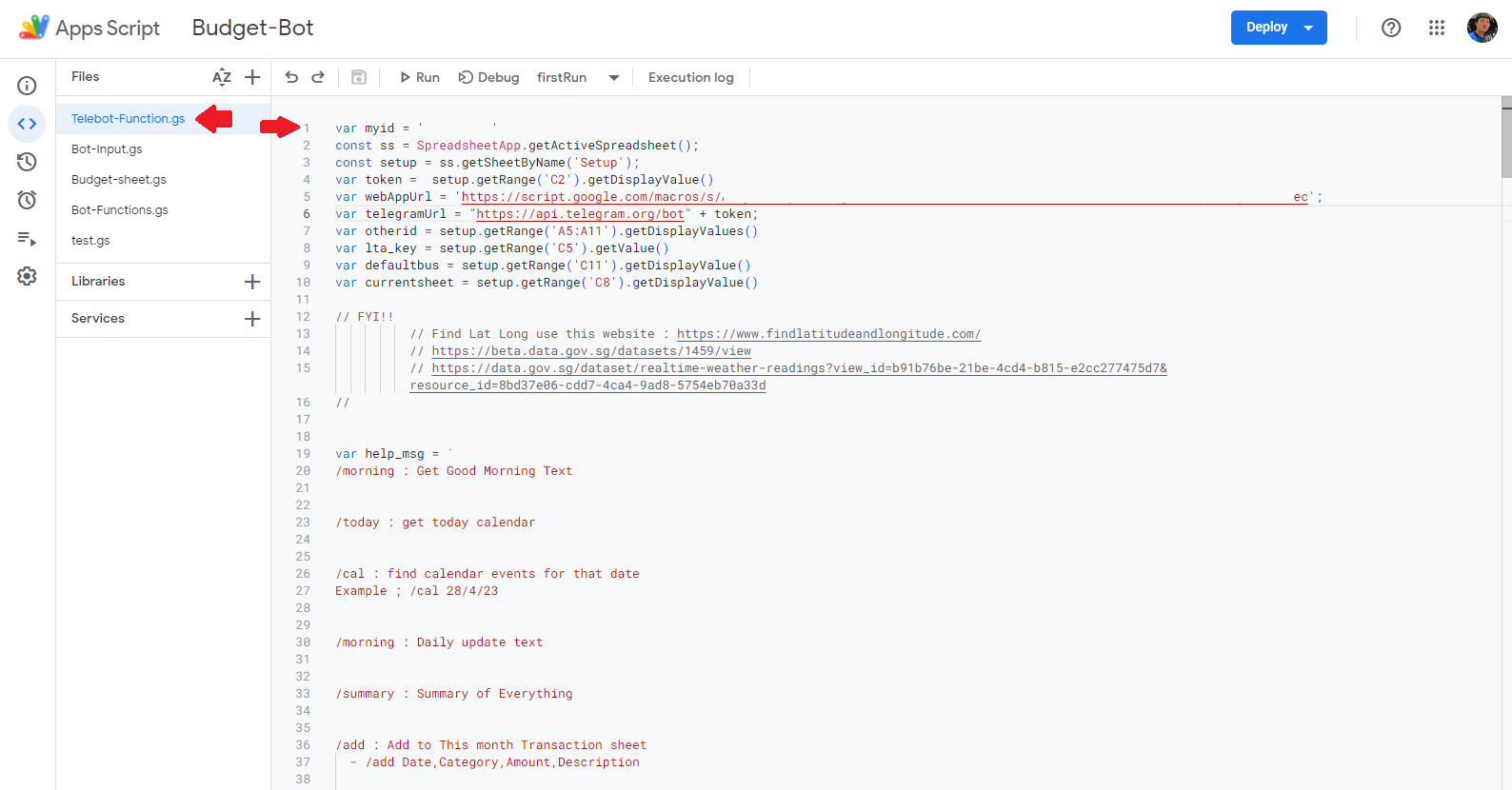
2.11. "Paste the Web app URL to the WebAppUrl line#
-
In this case it is line 5
-
Then re deploy again (manage Deployment)."
2.12. Redeployment#
2.13. Press the green button First Run in sheet : Setup#
3. Other Setup#
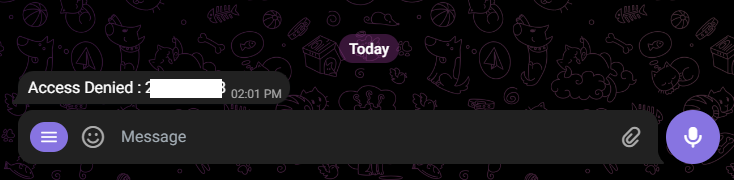
3.1. Start your telegram bot and you should recieved an Access Denied#
- Those numbers are your Telegram Authenication ID
3.2. Copy those number and insert it to Line 1 in the Apps Script#
-
Remember to redeploy after inserting your ID!!!
-
Refer to step 2.12. on redeployment
3.3. Set subscription tracker trigger#
-
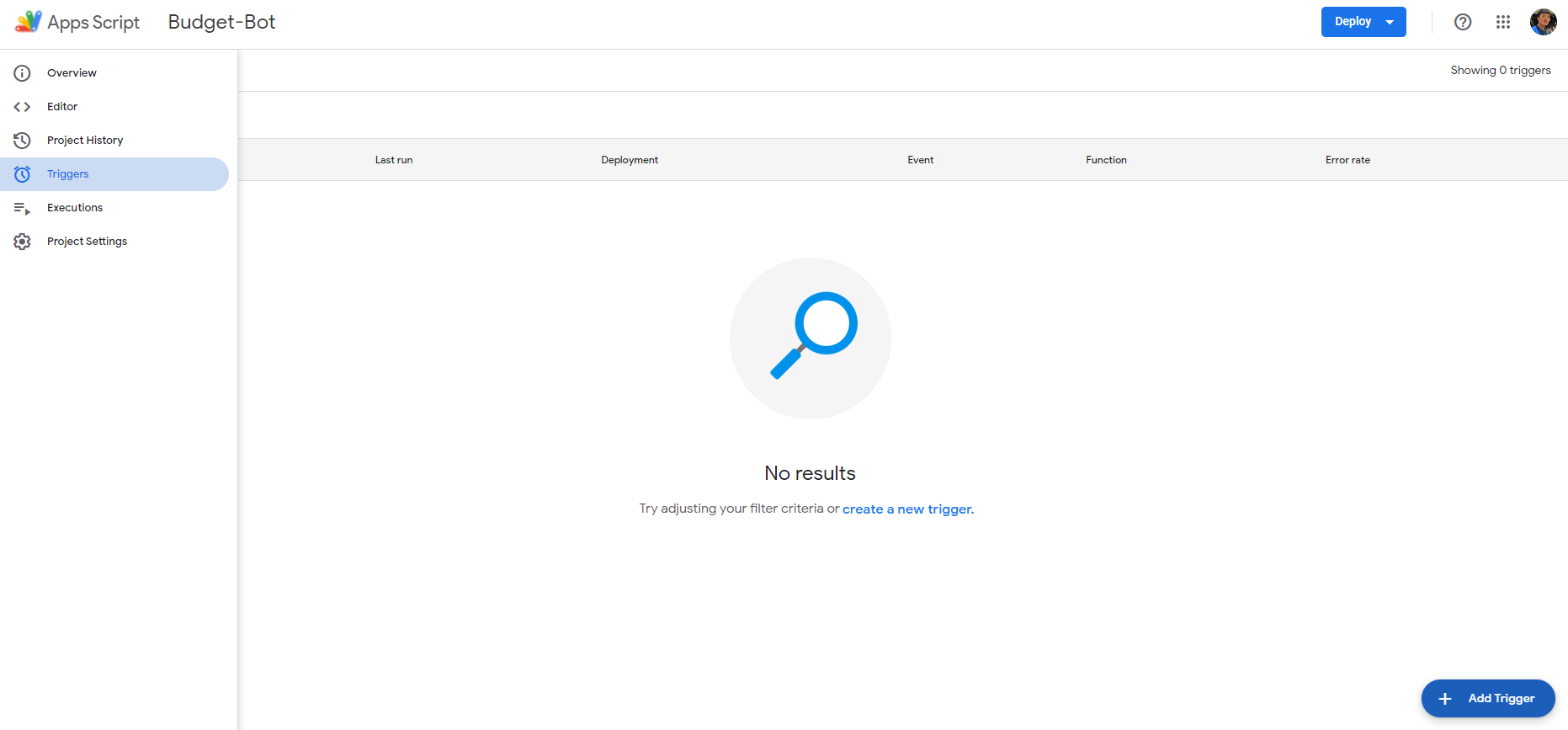
On Left side sellect Triggers
-
At this page press Add Triger"
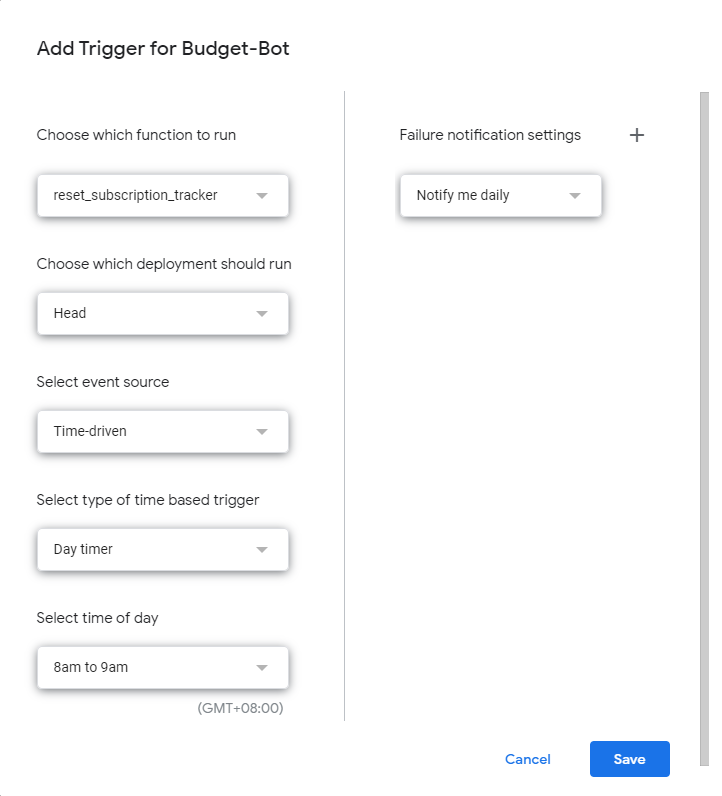
3.4. Set the Trigger#
-
Select function : reset_subscription_tracker
-
!! Ensure the time is after 3am Singapore time
-
Repeat step 3.4 for :
-
daily_update
-
goodnight
-
repeated_transaction
-
The timing for these 2 function can be to your preference :
-
daily_update : morning 7am to 8am (Recomended)
-
goodnight : during evening 8pm to 9pm" (Recomended)
-
repeated_transaction : month timer, 1st day of the month after 3am to 4am (Recomended)
-
-
Done!!!#
FYI#
-
You may give other people access by inserting their ID into the
Setupsheet.- Cell A3 to A11
-
To Deactivate the bot, click the red button
Remove